Documentation Index
Fetch the complete documentation index at: https://docs.primeearn.com/llms.txt
Use this file to discover all available pages before exploring further.
Offers Script Integration
The Script Integration lets you embed the PrimeEarn Games & Offers wall directly into your page using a small JavaScript snippet. Compared to the IFrame Integration, this approach gives the widget tighter visual integration with your page — it renders inside any container element you specify rather than inside a separate frame.
Step 1 — Add a Container Element
Add an empty <div> anywhere on your page where you want the widget to appear. Give it an id so the script can find it.
<div id="primeearn-offers" style="height: 600px; width: 100%;"></div>
You can name the id anything you like. Set the height and width to match your layout.
Step 2 — Add the Script Snippet
Paste this snippet on the same page, anywhere after the container div (or in a <head> script that runs after DOM ready).
<script>
(function () {
window.psConfig = {
container: "#primeearn-offers",
appId: "YOUR_APP_ID",
userId: "USER_UNIQUE_ID",
module: "offers",
};
document.head.appendChild(
Object.assign(document.createElement("script"), {
src: `https://monetize.primeearn.com/ext/integration2.js?v=${Date.now()}`,
})
);
})();
</script>
Replace YOUR_APP_ID with your Publisher App ID from the PrimeEarn dashboard, and USER_UNIQUE_ID with the current user’s unique identifier in your system (same value you use as uuid in the IFrame integration).
Never hardcode a real user ID as a string literal. Always inject it server-side or from your authentication context so each user sees their own personalised offer list.
All configuration goes inside window.psConfig. The table below covers everything a publisher needs to set up and run the integration correctly.
Required
| Parameter | Type | Description |
|---|
container | string | CSS selector of the element the widget mounts into (e.g. "#primeearn-offers"). |
appId | string | Your Publisher App ID. Available in the PrimeEarn dashboard. |
userId | string | Unique, persistent identifier for the end user in your system. |
User Attributes
Pass as many of these as you have available. The more context you provide, the better the offer targeting.
| Parameter | Type | Description |
|---|
maid | string | Mobile Advertising ID — IDFA on iOS or GAID on Android. Must be passed when available; significantly improves campaign match rates. |
platform | string | Host platform: web (default), ios, android. |
Layout
| Parameter | Type | Default | Description |
|---|
layout | string | "default" | "default" renders a grid, "vertical" a list, "horizontal" a carousel row. |
columnQty | number | 3 | Number of columns in the grid. Only applies when layout = "default". |
limit | number | 12 | Maximum number of offers to show. Applies to vertical and horizontal layouts. |
Localisation & Currency
| Parameter | Type | Default | Description |
|---|
language | string | auto | Force a display language using an ISO 639-1 code (e.g. "de", "fr"). Leave empty to auto-detect. |
localization | string | "en-US" | Full locale used for formatting (e.g. "de-DE", "fr-FR"). |
currency | string | — | Override the currency label shown next to reward amounts. |
Step 4 — Choose a Module
The module parameter controls what the widget renders. For offers and games, use one of these two options:
offers — Full Offers Wall
Renders a full scrollable list of available offers and games for the user.
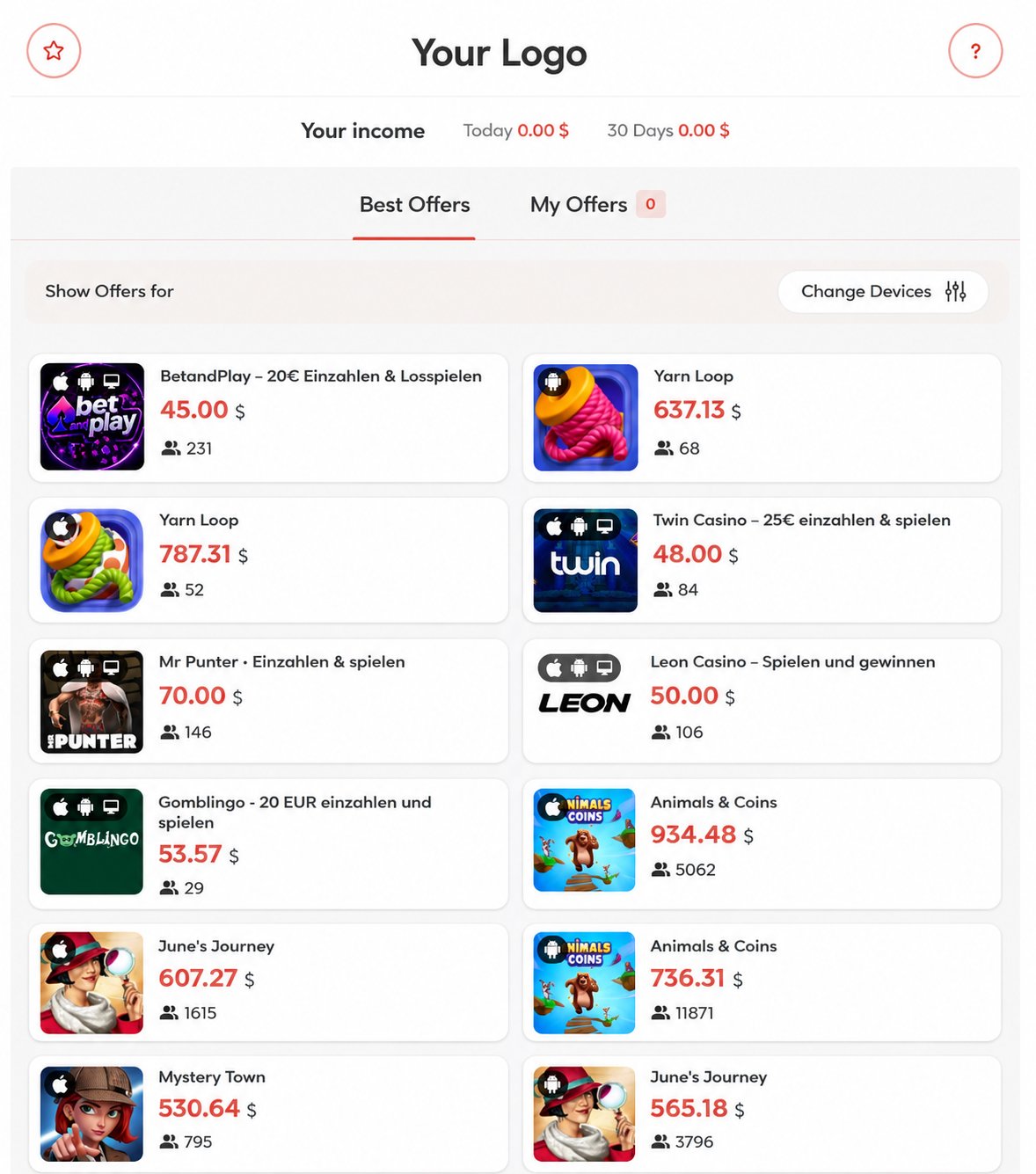
window.psConfig = {
container: "#primeearn-offers",
appId: "YOUR_APP_ID",
userId: "USER_UNIQUE_ID",
module: "offers",
};
offers-carousel — Horizontal Carousel
Renders a compact, horizontally scrollable row of offers — ideal for embedding inline within a page alongside other content.
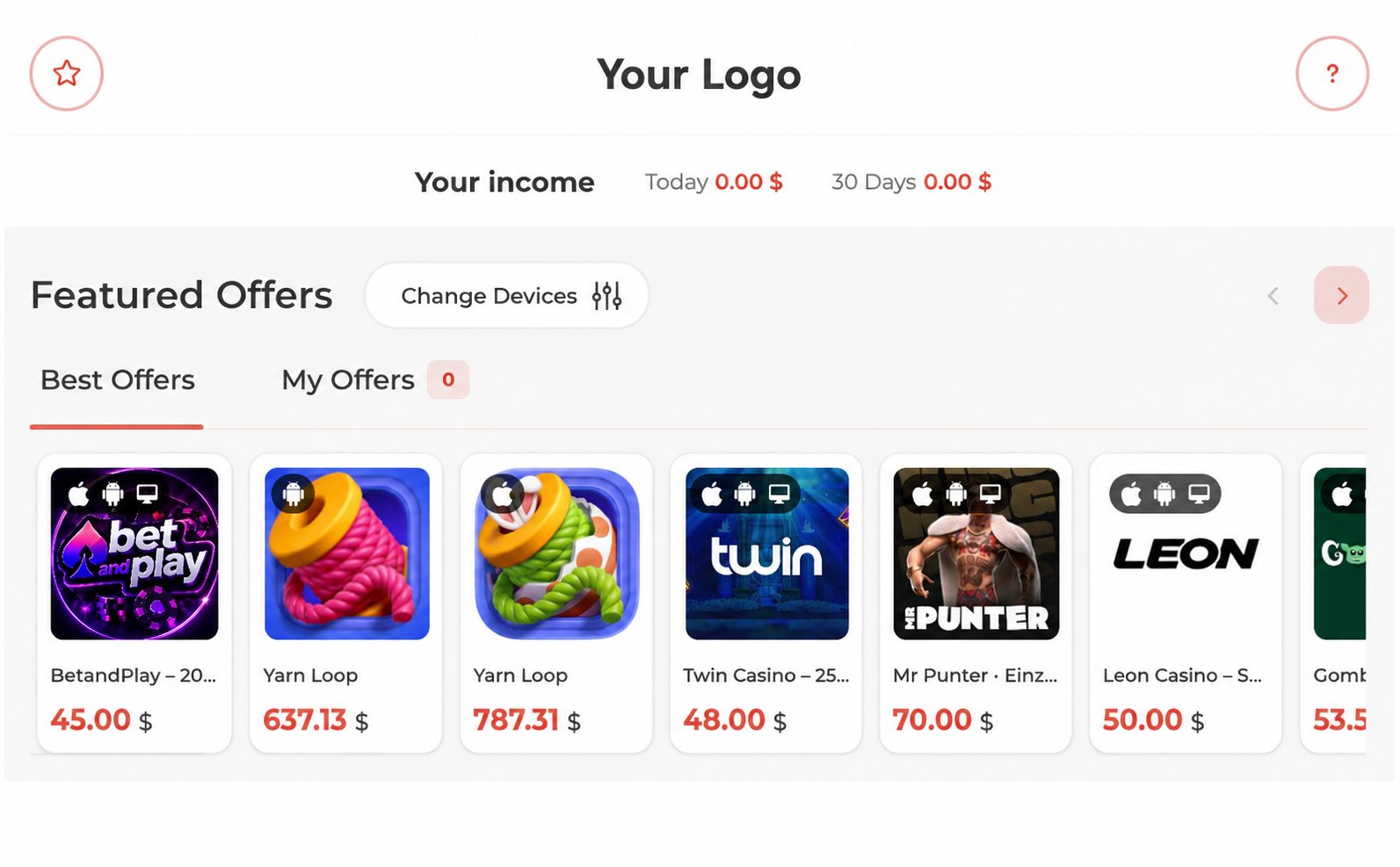
window.psConfig = {
container: "#primeearn-carousel",
appId: "YOUR_APP_ID",
userId: "USER_UNIQUE_ID",
module: "offers-carousel",
limit: 10,
};
Use offers-carousel for compact placements like a homepage sidebar or a reward teaser section. Use offers for a dedicated offers page where users expect to browse the full list.
Step 5 — Customize the Design
You can override the widget’s colors and visual style using the customAppDesign object. Pass any CSS variable overrides you want to apply:
window.psConfig = {
container: "#primeearn-offers",
appId: "YOUR_APP_ID",
userId: "USER_UNIQUE_ID",
module: "offers",
customAppDesign: {
"--p-primary-500": "#5B6CFF", // primary accent color
"--ps-pages-bg": "#0F1115", // background color
},
};
Contact your account manager to get the full list of available CSS variables for your integration.
Full Example
<div id="primeearn-offers" style="min-height: 600px; width: 100%;"></div>
<script>
(function () {
window.psConfig = {
container: "#primeearn-offers",
appId: "YOUR_APP_ID",
userId: "USER_UNIQUE_ID",
module: "offers",
platform: "web",
maid: "USER_ADVERTISING_ID",
language: "en",
localization: "en-US",
layout: "default",
columnQty: 3,
};
document.head.appendChild(
Object.assign(document.createElement("script"), {
src: `https://monetize.primeearn.com/ext/integration2.js?v=${Date.now()}`,
})
);
})();
</script>