Offers Script Integration
The Script Integration lets you embed the Prime Earn Games & Offers wall directly into your page using a small JavaScript snippet. Compared to the IFrame Integration, this approach gives the widget tighter visual integration with your page — it renders inside any container element you specify rather than inside a separate frame.Step 1 — Add a Container Element
Add an empty<div> anywhere on your page where you want the widget to appear. Give it an id so the script can find it.
id anything you like. Set the height and width to match your layout.
Step 2 — Add the Script Snippet
Paste this snippet on the same page, anywhere after the container div (or in a<head> script that runs after DOM ready).
YOUR_APP_ID with your Publisher App ID from the Prime Earn dashboard, and USER_UNIQUE_ID with the current user’s unique identifier in your system (same value you use as uuid in the IFrame integration).
Step 3 — Configure Parameters
All configuration goes insidewindow.psConfig. The table below covers everything a publisher needs to set up and run the integration correctly.
Required
User Attributes
Pass as many of these as you have available. The more context you provide, the better the offer targeting.
Source & Network ID Reference
Pass the numeric
ID as the value for both source and network. Choose the row that best describes how the user arrived in your app.
Layout
Localisation & Currency
Step 4 — Choose a Module
Themodule parameter controls what the widget renders. For offers and games, use one of these two options:
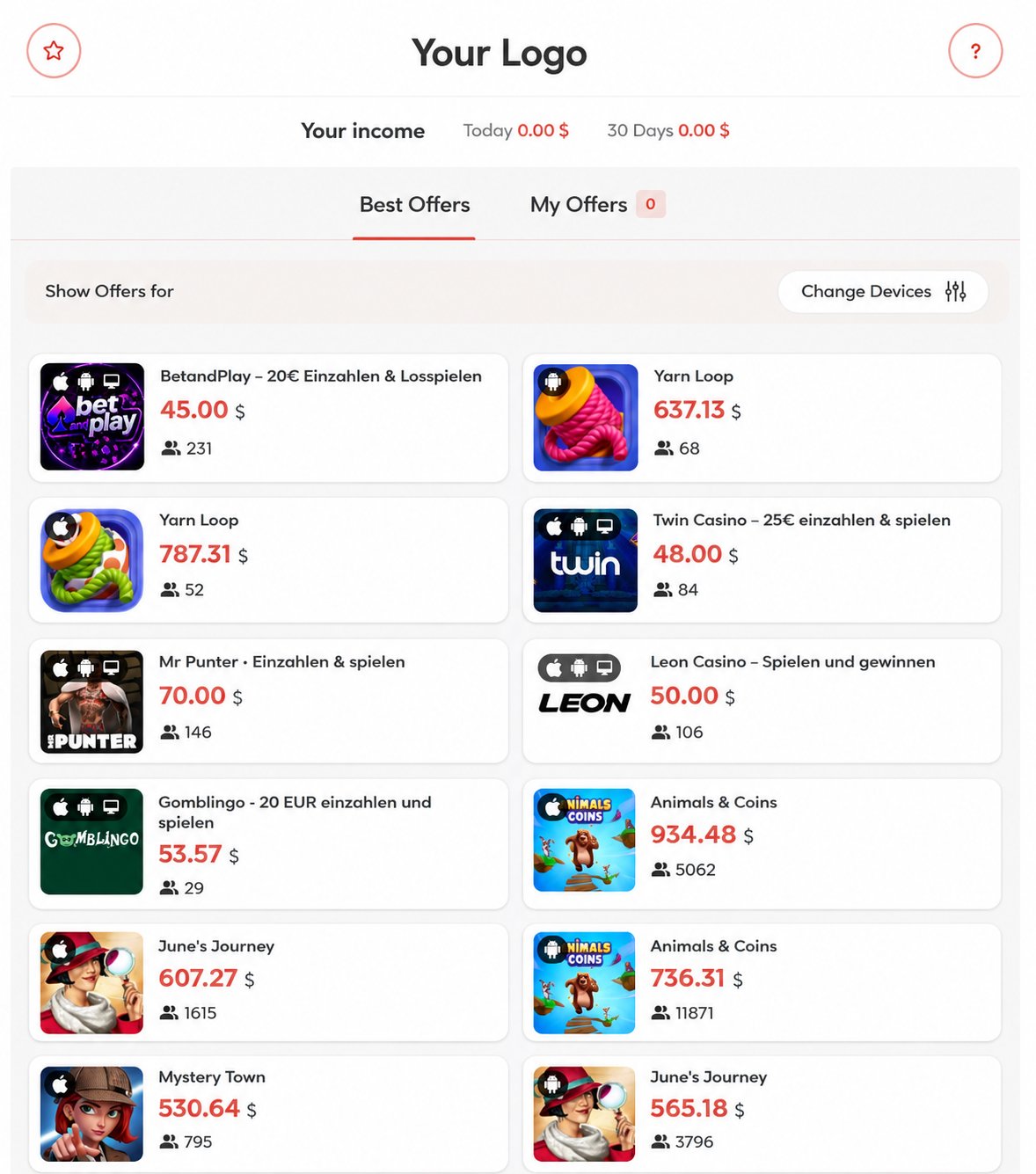
offers — Full Offers Wall
Renders a full scrollable list of available offers and games for the user.
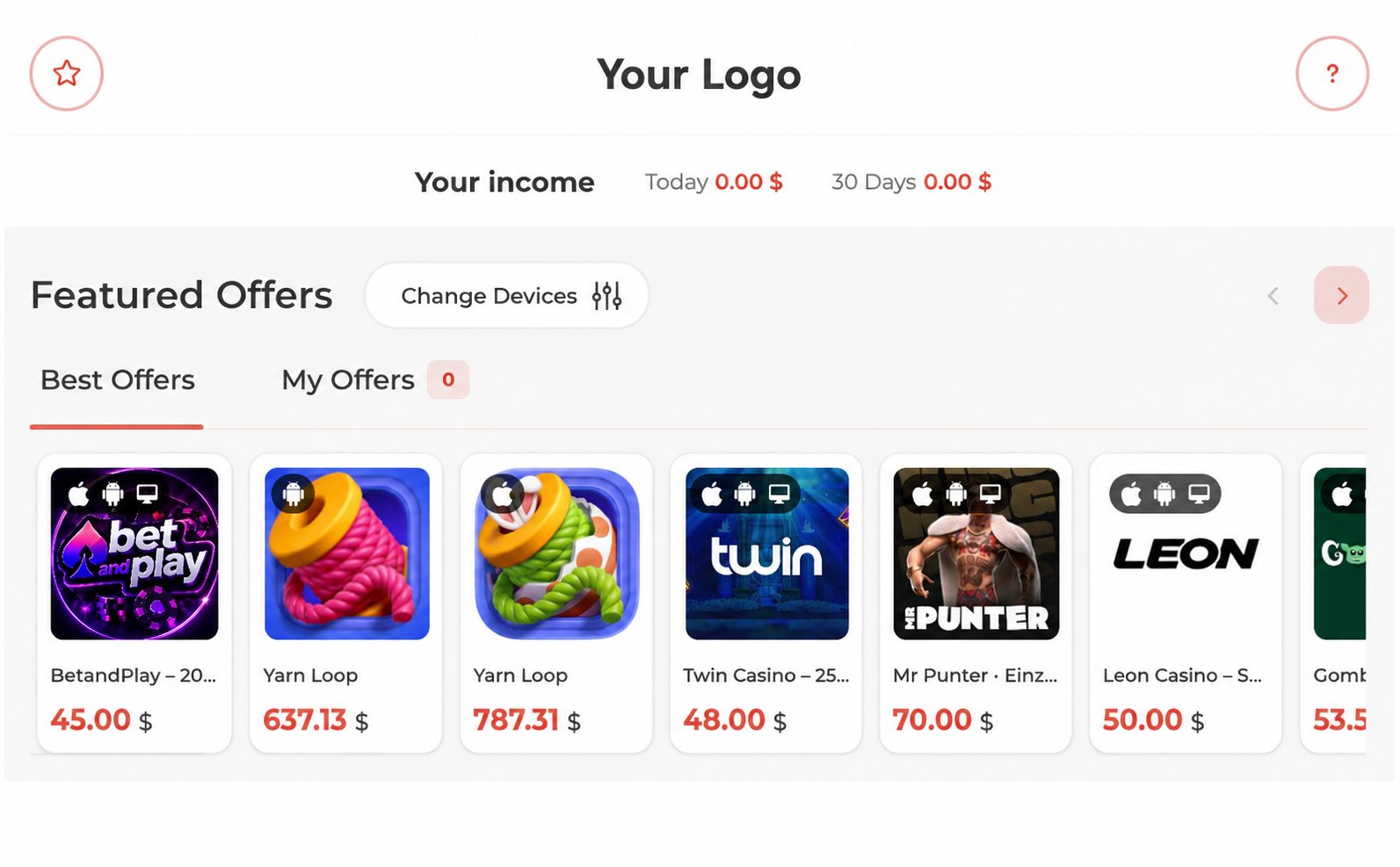
offers-carousel — Horizontal Carousel
Renders a compact, horizontally scrollable row of offers — ideal for embedding inline within a page alongside other content.
Step 5 — Customize the Design
You can override the widget’s colors and visual style using thecustomAppDesign object. Pass any CSS variable overrides you want to apply: